Telegram
Table of Contents
Prerequisites
This guide assumes
- You are familiar with JSON formatting.
- You have read and understood the Alarms wiki.
- You are comfortable with the layout of
alarms.json. - You are using the latest version of PokeAlarm.
Please familiarize yourself with all of the above before proceeding.
Introduction
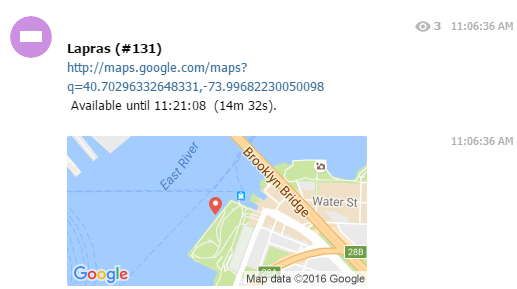
Telegram is a cloud-based instant messaging service. Telegram clients exist for both mobile (Android, iOS, Windows Phone, Ubuntu Touch) and desktop systems (Windows, OS X, Linux). Users can send messages and exchange photos, videos, stickers and files of any type.
PokeAlarm offers the following for Telegram:
- Notifications to multiple Telegram channels
- Customizable Google Map image of the pokemon, gym, pokestop, egg and/or raid location
- Personalized notifications via Events
Basic Config
Required Parameters
These alarm.json parameters are required to enable the Telegram alarm service:
| Parameters | Description |
|---|---|
| type | Must be "telegram" |
| active | true for alarm to be active |
| bot_token | Your Bot Token from Telegram |
| chat_id | Your chat’s id from Telegram |
Example: Basic Alarm Configuration using Required Parameters
Below is how a basic Telegram alarm configuration would appear in
alarms.json. Note that this is not the entire alarms.json, but only
the section pertaining to the alarm portion of the JSON file.
{
      "active":true,
      "type":"telegram",
      "bot_token":"YOUR_BOT_TOKEN",
      "chat_id":"YOUR_CHAT_ID"
}
Advanced Config
Optional Parameters
In addition to the required parameters, several alarms.json optional
parameters are available to personalize your notifications. Below is an example
of these optional parameters and how they are incorporated into a functional
alarm layout.
Parameters at the alarm level will be the default to alert-level parameters.
| Parameters | Description | Default |
|---|---|---|
| map | Sends minimap after main message. | true |
| map_notify | Disables map notifications. Set to false if you
are experiencing notification issues on Android |
false |
| venue | Sends location in main message.* | false |
| venue_notify | Disables venue notifications. Set to false if you
are experiencing notification issues on Android |
true |
| message_notify | Enables notifications messages | true |
| sticker | Sends pokemon images as stickers in the message | true |
| sticker_notify | Disables sticker notifications. Set to false
if you are experiencing notification issues on Android |
false |
| sticker_url | Url to be used for the sticker. Must be .webp file. | |
| max_attempts | Max attempts to send for each message. | "3" |
| web_preview | Enables web preview for links in message. | false |
| startup_message | Confirmation post when PokeAlarm initialized | true |
| startup_text | Custom message post when PA initialized |
These optional parameters below are applicable to the monsters, stops,
gyms, eggs, and raids sections of the JSON file. These parameters
override the alarm-level settings for this alert.
| Parameters | Description | Default |
|---|---|---|
| message | Text for the message | "*A wild <mon_name> has
appeared!*\nAvailable until
<24h_time> (<time_left>)." |
| map | Sends minimap after main message. | true |
| map_notify | Disables map notifications. Set to
false if you are experiencing
notification issues on Android |
false |
| venue | Sends location in main message.* | false |
| venue_notify | Disables venue notifications. Set to
false if you are experiencing
notification issues on Android |
true |
| sticker | Sends images as stickers in the message | true |
| sticker_notify | Disables sticker notifications. Set to
false if you are experiencing
notification issues on Android |
false |
Note
*if you use venue, keep in mind that the markdown in your alarms
will be ignored because of a limitation in the Telegram API.
Example: Alarm Configuration Using Optional Parameters
Below is how an advanced alarm configuration would appear in alarms.json.
Note that this is not the entire alarms.json, but only the section
pertaining to the alarm portion of the JSON file.
{
  "telegram_alarm":{
    "active":true,
    "type":"telegram",
    "bot_token":"YOUR_BOT_TOKEN",
    "chat_id":"YOUR_CHAT_ID",
    "map_notify":false,
    "startup_message":false,
    "sticker":true,
    "monsters":{
        "chat_id":"OVERRIDES_DEFAULT_CHANNEL",
        "message":"*A wild <mon_name> has appeared!*\nAvailable until <24h_time> (<time_left>).",
        "map":true
    },
    "stops":{
        "chat_id":"OVERRIDES_DEFAULT_CHANNEL",
        "message":"*Someone has placed a lure on a Pokestop!*\nLure will expire at <24h_time> (<time_left>).",
        "map":true
    },
    "gyms":{
        "chat_id":"OVERRIDES_DEFAULT_CHANNEL",
        "message":"*A Team <old_team> gym has fallen!*\nIt is now controlled by <new_team>.",
        "map":true
    },
    "eggs":{
        "chat_id":"OVERRIDES_DEFAULT_CHANNEL",
        "message":"*A level <egg_lvl> raid is incoming!*\nThe egg will hatch <24h_hatch_time> (<hatch_time_left>).",
        "map":true
    },
    "raids":{
        "chat_id":"OVERRIDES_DEFAULT_CHANNEL",
        "message":"*A raid is available against <mon_name>!*\nThe raid is available until <24h_raid_end> (<raid_time_left>).",
        "map":true
    },
    "quests":{
        "chat_id":"OVERRIDES_DEFAULT_CHANNEL",
        "message":"A new quest is available at <stop_name>!\nConditions: <quest_condition>\nReward: <reward>",
        "map":true
    },
    "invasions":{
        "chat_id":"OVERRIDES_DEFAULT_CHANNEL",
        "message":"Team Rocket Go has invaded <stop_name>!"
    }
  }
}
Formatting alarms text
Here is a basic guide to apply custom styles to alarm text:
| Style | Example |
|---|---|
| _italic text_ | italics |
| *bold text* | bold |
| _*bold italics*_ | bold italics |
You can see other options in the official Telegram information about formatting text here.
How to get a Telegram API Key
- Go to Telegram Web Client. Enter your phone number and follow the instructions to create your account.
- Talk to the BotFather to create a new bot.
Use the
/newbotcommand and follow his instructions. It will give you an API Token when you are finished. - Start a conversation with your bot. In the top left click on the menu bars, then click create group. Type in the name of the bot you previously created, then click on it when it appears below. Then click next. Type any message to your bot.
- Enter your bot_token in to replace the
<BOT_TOKEN_HERE>in the following urlhttps://api.telegram.org/bot<BOT_TOKEN_HERE>/getUpdates. Then go to it, and find the section that says"chat":{"id":<CHAT_ID>. This number is your chat_id.
How to Create a Custom Channel
- Create a Public Channel (Currently doesn’t work from the web app).
- Add your bot as an administrator for the channel.
- The chat_id for your bot will be @channel_url.