Slack
Table of Contents
Prerequisites
This guide assumes
- You are familiar with JSON formatting.
- You have read and understood the Alarms wiki.
- You are comfortable with the layout of
alarms.json. - You are using the latest version of PokeAlarm.
Please familiarize yourself with all of the above before proceeding.
Introduction
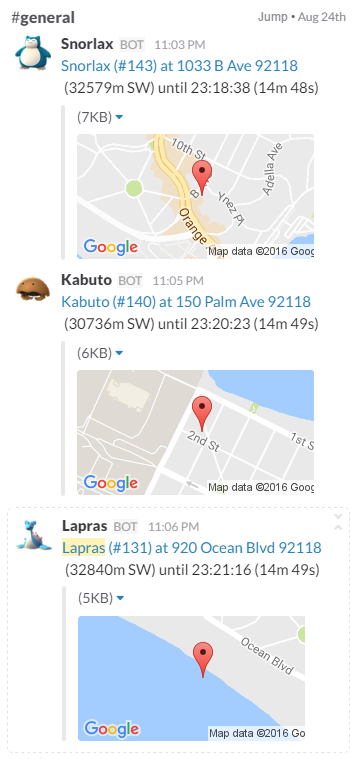
Slack is a cloud-based team collaboration tool that is available on Windows, Mac OS X, Linux, iOS, Android, and Windows Phone. Slack offers a lot of IRC-like features: persistent chat rooms (channels) organized by topic, as well as private groups and direct messaging. All content inside Slack is searchable, including files, conversations, and people.
PokeAlarm offers the following for Slack:
- Custom username for posting
- High resolution icons for pokemon, gym, pokestop, egg and/or raid notifications
- Notifications to multiple Slack channels and/or teams
- Customizable Google Map image of the pokemon, gym, pokestop, egg and/or raid location
- Personalized notifications via Events
Basic Config
Required Parameters
These parameters below are required to enable the Slack alarm service:
| Parameters | Default | Description |
|---|---|---|
| type | "slack" |
Name of service |
| active | false |
true for alarm to be active |
| api_key | Your Slack API key | |
| channel | "general" |
Default channel to post notifications |
Example: Basic Alarm Configuration using Required Parameters
{
      "active":true,
      "type":"slack",
      "api_key":"YOUR_API_KEY",
      "channel":"general"
}
Note
The above code is to be inserted into the alarms section of alarms.json. It does not represent the entire alarms.json file.
Advanced Config
Optional Parameters
In addition to the 3 required parameters, several optional parameters are available to personalize your Slack notifications. Below is an example of these optional parameters and how they are incorporated into a functional alarm layout for Slack.
These optional parameters are entered at the same level as "type":"slack".
| Parameters | Description | Default |
| startup_message | Confirmation post when PokeAlarm initialized | true |
| startup_text | Custom message post when PA initialized |
These optional parameters below are applicable to the monsters, stops,
gyms, eggs, and raids sections of the JSON file.
| Parameters | Description | Default |
|---|---|---|
| channel | Send messages to this channel | #general |
| username | Username the bot should post the message | <mon_name> |
| icon_url | URL path to pokemon icon | |
| title | Notification text to begin the message | A wild <mon_name> has appeared! |
| url | Link to be added to notification text | <gmaps> |
| body | Additional text to be added to the message | Available until <24h_time> (<time_left>). |
| map | Specify a JSON object to describe the map | See Mini Map Configuration for more details |
Note
Nidorans will be nidoranf or nidoranm, Farfetch’d will be
farfetchd, and Mr. Mime will be mrmime.
Channels that do not exist (channels cannot be created by bots) will
default to general instead.
Example: Alarm Configuration Using Optional Parameters
{
  "slack_alarm":{
    "active":true,
    "type":"slack",
    "api_key":"YOUR_API_KEY",
    "channel":"general",
    "startup_message":true,
    "monsters":{
        "channel":"general",
        "username":"<mon_name>",
        "icon_url*":"YOUR CUSTOM URL HERE/<mon_id_3>_<form_id_3>.png",
        "title":"A wild <mon_name> has appeared!",
        "url":"<gmaps>",
        "body":"Available until <24h_time> (<time_left>).",
        "map":{
            "enabled":true,
            "width":"250",
            "height":"125",
            "maptype":"roadmap",
            "zoom":"15"
        }
    },
    "stops":{
        "channel":"general",
        "username":"Pokestop",
        "icon_url*":"YOUR CUSTOM URL HERE/ready.png",
        "title":"Someone has placed a lure on a Pokestop!",
        "url":"<gmaps>",
        "body":"Lure will expire at <24h_time> (<time_left>)."
    },
    "gyms":{
        "channel":"general",
        "username":"<new_team> Gym Alerts",
        "icon_url*":"YOUR CUSTOM URL HERE/<new_team_id>.png",
        "title":"A Team <old_team> gym has fallen!",
        "url":"<gmaps>",
        "body":"It is now controlled by <new_team>."
    },
    "eggs":{
        "username":"Egg",
        "icon_url*":"YOUR CUSTOM URL HERE/<egg_lvl>.png",
        "title":"A level <egg_lvl> raid is incoming!",
        "url":"<gmaps>",
        "body":"The egg will hatch <24h_hatch_time> (<hatch_time_left>)."
    },
    "raids":{
        "username":"<mon_name> Raid",
        "icon_url*":"YOUR CUSTOM URL HERE/<mon_id_3>_000.png",
        "title":"Level <raid_lvl> raid is available against <mon_name>!",
        "url":"<gmaps>",
        "body":"The raid is available until <24h_raid_end> (<raid_time_left>)."
    }
  }
}
Note
*THESE LINES ARE USED TO OVERRIDE DEFAULT VALUES. IF YOU DO NOT WISH TO USE CUSTOM IMAGES, DO NOT ADD THESE LINES TO YOUR ALARMS.JSON.
The above code is to be inserted into the alarms section of alarms.json. It does not represent the entire alarms.json file.
Mini Map Configuration
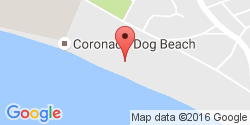
You can enable a small Google Static Maps image after your post, showing the
location of the alarmed pokemon, gym, pokestop, egg or raid. This is done by
adding the map parameter at the Alarm level (which will apply maps for any
notification), or individually to the monsters, stops, gyms, eggs, or
raids sections of your alarm.
Below is an example of enabling the mini map for pokemon:
"monsters":{
        "channel":"general",
        "username":"<mon_name>",
        "title":"A wild <mon_name> has appeared!",
        "url":"<gmaps>",
        "body":"Available until <24h_time> (<time_left>).",
        "map":{
                "enabled":true,
                "width":"250",
                "height":"125",
                "maptype":"roadmap",
                "zoom":"15"
        }
},
| Parameters | Description | Default |
|---|---|---|
| enabled | Turns the map on or off | true |
| width | Width of the map | "250" px |
| height | Height of the map | "150" px |
| maptype | Link to be added to notification text | "roadmap" |
| zoom | Specifies the zoom of the map | "15" |
You can also include a string instead of an object in order to define a static map from any service using their api
Example using mapquest where xxx is your api key:
"monsters":{
"channel":"general",
"username":"<mon_name>",
"icon_url*":"<YOUR CUSTOM URL HERE>/<mon_id_3>_<form_id_3>.png",
"title":"A wild <mon_name> has appeared!",
"url":"<gmaps>",
"body":"Available until <24h_time> (<time_left>).",
"map":"https://www.mapquestapi.com/staticmap/v5/map?size=250,125&type=map&zoom=15¢er=<lat>,<lng>&locations=<lat>,<lng>&size=@2x&imagetype=JPEG&key=xxx"
},
Likewise, you can define your map in the alarm-level in order to use this URL across the entire alarm.
{
"active":true,
"type":"slack",
"webhook_url":"YOUR_WEBHOOK_URL",
"map":"https://www.mapquestapi.com/staticmap/v5/map?size=250,125&type=map&zoom=15¢er=<lat>,<lng>&locations=<lat>,<lng>&size=@2x&imagetype=JPEG&key=xxx"
}
Formatting alarms text
Here is a basic guide to apply custom styles to alarm text:
| Style | Example |
|---|---|
| _italics_ | italics |
| *bold* | bold |
| _*bold italics*_ | bold italics |
| ~strikethrough~ | strikethrough |
You can see other options in the official Slack information about formatting text here.
How to get a Slack API Key
- Visit slack.com. Enter your email address and
click
Create your team. Follow the instructions to setup and activate your account. - Go to the create a bot page. Enter a username and click create.
- Copy the API Token given. Fill out any more information you want, and click
Save Integration.