Facebook Pages
Table of Contents
Prerequisites
This guide assumes
- You are familiar with JSON formatting.
- You have read and understood the Alarms wiki.
- You are comfortable with the layout of
alarms.json. - You are using the latest version of PokeAlarm.
Please familiarize yourself with all of the above before proceeding.
Introduction
Facebook Pages is an online social networking service that enables users to post status messages to a public profile specifically created for business, brands, celebrities, causes, and other organizations. Registered users can read and post messages, but those who are unregistered can only read them. Users access Facebook through the website interface, SMS or mobile device app.
PokeAlarm offers the following for Facebook Pages:
- Personalized notifications via Events
Basic Config
Required Parameters
These alarms.json parameters - active, type, and page_access_token -
are required to enable the Facebook Pages alarm service:
| Parameters | Description |
|---|---|
| type | Must be "facebook_page" |
| active | true for alarm to be active |
| page_access_token | Your permanent FB page access token |
Example: Basic Alarm Configuration using Required Parameters
{
      "active":true,
      "type":"facebook_page",
      "page_access_token":"YOUR_PAGE_ACCESS_TOKEN"
}
Note
The above code is to be inserted into the alarms section of alarms.json. It does not represent the entire alarms.json file.
Advanced Config
Optional Parameters
In addition to the 3 required parameters, several optional parameters are available to personalize your Facebook Pages notifications. Below is an example of these optional parameters and how they are incorporated into a functional alarm layout for Facebook Pages.
These optional parameters are entered at the same level as "type":"facebook_page".
| Parameters | Description | Default |
| startup_message | Confirmation post when PokeAlarm initialized | true |
| startup_text | Custom message post when PA initialized |
These optional parameters below are applicable to the monsters, stops,
gyms, eggs, and raids sections of the JSON file. Check Image column to
see where everything appears in the final publication.
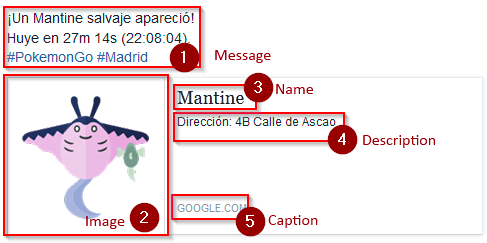
| Parameters | Description | Image |
|---|---|---|
| message | Message to post as status message | 1 |
| link | Link to be added to notification text | Link |
| image | Url of the image to show as a preview (empty for linked page preview) | 2 |
| name | Link title (empty for linked page title) | 3 |
| description | Link description (empty for blank description) | 4 |
| caption | Link domain (empty for linked page domain) | 5 |
When it says "empty for X" it means that you can disable the default
PokeAlarm value setting that parameter to "" in your alarms.json file.
In that case Facebook will use the link information to fill that field in the
publication.
For example if you have link as a google maps link and you disable the
image parameter setting it to "", it will be a minimap image of that
coordinates.
monsters default values:
| Parameters | Default |
|---|---|
| message | A wild <mon_name> has appeared! |
| image | |
| link | <gmaps> |
| name | <mon_name> |
| description | Available until <24h_time> (<time_left>) |
| caption | None |
stops default values:
| Parameters | Default |
|---|---|
| message | Someone has placed a lure on a Pokestop! |
| image | |
| link | <gmaps> |
| name | Lured Pokestop |
| description | Lure will expire at <24h_time> (<time_left>) |
| caption | None |
gyms default values:
| Parameters | Default |
|---|---|
| message | A Team <old_team> gym has fallen! |
| image | |
| link | <gmaps> |
| name | <old_team> gym fallen |
| description | It is now controlled by <new_team> |
| caption | None |
eggs default values:
| Parameters | Default |
|---|---|
| message | A level <egg_lvl> raid is upcoming! |
| image | |
| link | <gmaps> |
| name | Egg |
| description | A level <egg_lvl> raid will hatch at <24h_hatch_time>
(<hatch_time_left>). |
| caption | None |
raids default values:
| Parameters | Default |
|---|---|
| message | Level <raid_lvl> raid available against <mon_name>! |
| image | |
| link | <gmaps> |
| name | Raid |
| description | The raid is available until <24h_raid_end>
(<raid_time_left>). |
| caption | None |
Example: Alarm Configuration Using Optional Parameters
{
  "facebook_alarm":{
    "active":true,
    "type":"facebook_page",
    "page_access_token":"YOUR_PAGE_ACCESS_TOKEN",
    "startup_message":false,
    "monsters":{
        "message":"<mon_name> available. <quick_move>/<charge_move> (<iv>% - <atk>/<def>/<sta>)",
        "image*":"YOUR CUSTOM URL HERE/<mon_id_3>_<form_id_3>.png",
        "link":"<gmaps>",
        "description":"Address: <address>",
        "name":"<mon_name>"
    },
    "stops":{
        "message":"Someone has placed a lure on a Pokestop! Lure will expire at <24h_time> (<time_left>).",
        "image*":"YOUR CUSTOM URL HERE/ready.png",
        "description":"Address: <address>",
        "link":"<gmaps>",
        "name":""
    },
    "gyms":{
        "message":"A Team <old_team> gym has fallen! It is now controlled by <new_team>.",
        "image*":"YOUR CUSTOM URL HERE/<new_team_id>.png",
        "link":"<gmaps>",
        "name":"<new_team>",
        "description":"Address: <address>"
    },
    "eggs":{
        "message":"A level <egg_lvl> raid is upcoming!",
        "image*":"YOUR CUSTOM URL HERE/<egg_lvl>.png",
        "link":"<gmaps>",
        "name":"Egg",
        "description":"A level <egg_lvl> raid will hatch at <24h_hatch_time> (<hatch_time_left>)."
    },
    "raids":{
        "message":"Level <raid_lvl> raid available against <mon_name>!",
        "image*":"YOUR CUSTOM URL HERE/<mon_id_3>_000.png",
        "link":"<gmaps>",
        "name":"Raid",
        "description":"The raid is available until <24h_raid_end> (<raid_time_left>)."
    }
  }
}
Note
*THESE LINES ARE USED TO OVERRIDE DEFAULT VALUES. IF YOU DO NOT WISH TO USE CUSTOM IMAGES, DO NOT ADD THESE LINES TO YOUR ALARMS.JSON.
The above code is to be inserted into the alarms section of alarms.json. It does not represent the entire alarms.json file.
How to get a Permanent Facebook Page Token
Use the Graph API Explorer for all of these steps except where otherwise stated.
0. Create Facebook App
If you already have an app, skip to step 1.
- Go to My Apps.
- Click
+ Add a New App. - Setup a website app.
- Go to App Review of your new app and make sure your app is made Public.
1. Get User Short-Lived Access Token
- Go to the Graph API Explorer.
- Select the application you want to get the access token for by clicking on
the
Graph API Explorerdropdown near the top right. - Click
Get Tokendropdown and chooseGet User Access Token. - In the pop-up, under the
Events, Groups & Pagessection, checkmanage_pagesandpublish_pages. - Click
Get Access Token. - Grant access from a Facebook account that has access to manage the target page. Note that if this user loses access the final, never-expiring access token will likely stop working.
Token that appears in the Access Token field is your short-lived access token.
2. Generate Long-Lived Access Token
Following these instructions from the Facebook docs, make a GET request to
https://graph.facebook.com/v2.2/oauth/access_token?grant_type=fb_exchange_token&client_id={app_id}&client_secret={app_secret}&fb_exchange_token={short_lived_token}
entering in your app’s ID and secret, generated from step 0, and the
short-lived token, generated in the previous step. Be sure to remove the curly
braces {} when replacing values.
You cannot use the Graph API Explorer. For some reason it gets stuck on this request. I think it’s because the response isn’t JSON, but a query string. Since it’s a GET request, you can just go to the URL in your browser.
The response should look like this:
access_token=ABC123&expires=5182959
ABC123 will be your long-lived access token. You can put it into the
Access Token Debugger
to verify.
Under Expires it should have something like 2 months.
3. Get User ID
Using the long-lived access token, make a GET request to
https://graph.facebook.com/v2.2/me?access_token={long_lived_access_token}
Be sure to remove the curly braces {} when replacing values. The id field
is your account ID. You’ll need it for the next step.
4. Get Permanent Page Access Token
Make a GET request to
https://graph.facebook.com/v2.2/{account_id}/accounts?access_token={long_lived_access_token}
Be sure to remove the curly braces {} when replacing values. The JSON
response should have a data field under which is an array of items the user
has access to. Find the item for the page you want the permanent access token
from. The access_token field should have your permanent access token. Copy
it and test it in the Access Token Debugger.
Under Expires it should say Never.